How to create an AI influencer on your phone, start to finish
4 min read
You can create an AI influencer on your phone in Duble AI's browser app. There is no app-store download to install. Pick a ready-made influencer or build your own, then choose a trend or record yourself with the front camera. Once the video is ready, Save video opens your phone's share sheet so you can save it to Photos.
The full creation guide covers appearance choices and profile setup.
Start with a ready-made influencer
The website's Create my double button opens the introductory screens. A double is what the app calls your AI influencer.
- Open the creation path and continue past the example video to the influencer selection.
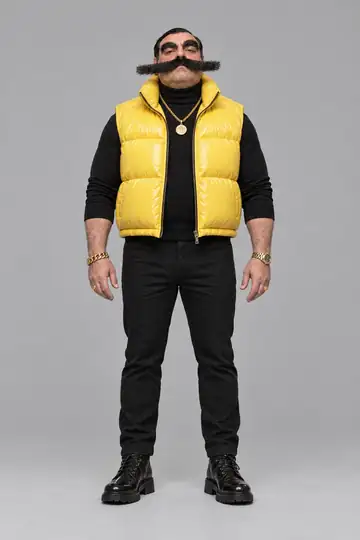
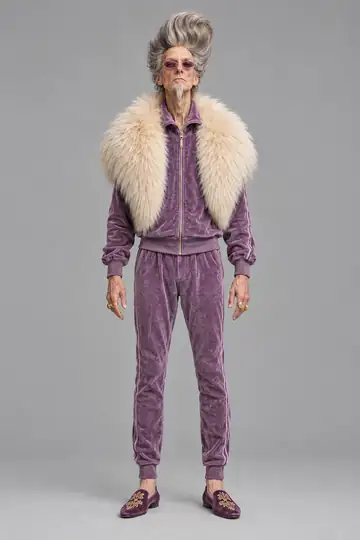
- Pick Enzo Puff from the cast and tap Continue with Enzo Puff. He is already drawn.
- Go through the sample week and tap See the packs. You will choose the actual trends later.
- Select an offer. Its price appears before you need to sign in.
- Use Continue with Google or Continue with email, then complete payment. An email with an existing account needs the code or link sent to it.
Payment adds credits. This introductory path does not start a video automatically. With a cast member selected, it returns you to the app to choose the footage.
Find your way around the bottom bar
Use the bottom bar to return to a video after leaving its progress page.
| Tab | What is there |
|---|---|
| Home | Your selected influencer and available trends |
| Doubles | Your influencers, each with its videos, photos and looks |
| Videos | Videos being made and finished results |
| Files | Uploaded videos, photos and objects |
| Account | Account profile and language settings |
Your credit balance is in the coin button at the top. Tap it to open the credits page.
Build your own instead
On the introductory selection screen, Create my double opens the builder. Pick the parts and tap Continue with this double. On this path, the drawing happens after payment.
Already in the app, tap New double on Home or Doubles to open the creation screen. Under Describe, fill in What they look like and tap Generate double, whose label shows its price. The drawing takes about 20 seconds. Build lets you choose parts through pictures; My photos uses photos of you or someone who agreed, never a celebrity.
When the picture is ready, enter Double's name and tap Save double. Creating allows up to 3 images at no cost across attempts and adjustments. Video generation uses paid credits.
Choose footage or open the front camera
On Home, select your influencer and tap a trend. On the trend's page, Watch the whole video, with sound plays the original before you decide. The trend video walkthrough covers the library choices.
To use your own recording:
- While signed in, tap Use your own video.
- Tap Record now to open the phone's front camera. For a clip you already filmed, Choose a video opens the gallery.
- Check the clip before generating. Use MP4 or MOV, from 3 to 30 seconds and up to 80 MB. For a longer clip, the app uses the beginning.
Film the action you want the influencer to do, since it takes your place in the clip. The setting comes from your footage and may change a little. Use videos you have the right to use. Replacing a person in your video covers preparing the shot.
Generate and find the result
Both routes lead to the same sound and quality choices.
- Answer What plays in this video? with Someone speaks or sings or Only music or background sound. The generate button waits for your answer.
- Choose Standard 768p, High 2K or Turbo 768p using the price shown on each. A 10-second Standard trend costs 20 credits; Standard costs 2 credits per second.
- Tap Generate video, which shows its price. If your balance is short, Buy credits says how many credits you are missing.
The app states 1 to 3 minutes for Standard and High, or seconds for Turbo. You can leave the progress page and open Videos while it works. If generation fails, the credits return to your balance.
Save the file to Photos or share its link
Open the finished result and watch it before posting. The file has no watermark.
- Tap Save video. Duble AI hands the video file to your phone's share sheet.
- On that sheet, choose Save Video to put it in Photos. If the app says Ready: tap again to save, tap again.
- Open the social app where you want to post and select the saved file. Label it as AI-made where the platform asks.
To send someone a viewing link, use the Share icon on the finished video's page. It creates a public link, then copies it or offers it to your phone's share sheet. Use this for a link to watch; use Save video when you want the file in your camera roll.
Frequently asked questions
- How do I create an AI influencer?
- Open Duble AI in your phone's browser and tap Create my double. Choose a cast member or build your own, then follow the account and payment steps. In the app, select a trend or record a clip for your influencer to appear in.
- How hard is it to create an AI influencer?
- You can start with a ready-made cast member without drawing one. Building your own uses picture choices, while Describe takes a short description. On a phone, the remaining steps are choosing footage, generating the video and saving it through the phone's share sheet.
- How much does it cost to create an AI influencer?
- Creating an influencer allows up to 3 images at no cost across attempts and adjustments. Taking a cast member costs no credits. Videos are paid: a 10-second Standard trend costs 20 credits. The app shows the price before you generate.
- How do I make AI influencer videos?
- Choose your influencer and source footage in Duble AI, answer the sound question and pick a quality. Generate the result, then tap Save video on your phone. In the share sheet that opens, choose Save Video to put the file in Photos.